We have relocated to Instructure Developer Documentation Portal. 🎉 Please update your bookmarks. This page will automatically redirect after July 1, 2026.
LTI 1.1 to 1.3 Migration Guide
Table of Contents
- Introduction
- Technical Differences
- The Migration Process
- Frequently Asked Questions
- Additional Resources
Introduction
LTI 1.3 represents a significant evolution from LTI 1.1, bringing modern security practices, improved interoperability, and powerful new services. Here are the major enhancements:
1. Dynamic Registration for Automatic Installation
With LTI 1.1, tools required manual configuration using XML/JSON configuration files, consumer keys, and shared secrets. Administrators had to copy-paste configuration details or enter them manually, and coordinate with vendors share passwords. LTI 1.3: introduced Dynamic Registration, allowing tools to automatically register with Canvas through a simple URL exchange. This streamlines installation and reduces configuration errors.
With Dynamic Registration, tools can register their registration URL ahead of time with Canvas, allowing Canvas administrators the ability to install the 1.3 tool from the Canvas Apps Discover page. Canvas and the tool will exchange configuration details automatically, removing the burden from the administrator. Updates to tool configuration can be managed programmatically (see LTI Registration Updates for details on the update workflow).
2. Assignment and Grading Services (AGS)
LTI 1.1 used the Basic Outcomes service for grade passback, which was limited to passing grades only for assignments where a student launched the tool.
LTI 1.3 provides the Assignment and Grading Services (AGS) specification, which allows tools to use the Line Items Service (for creating and managing gradebook columns without manual instructor setup), the Scores Service (for submitting scores for students who never launched the tool & batch grading), and the Results Service (for querying existing scores and submission data).
See Assignment Tools for implementation details.
3. Names and Roles Provisioning Service (NRPS)
In LTI 1.1, tools can only find out about users who launched the tool. Roster data had to be obtained through Canvas APIs or custom integrations. With LTI 1.3, the Names and Roles Provisioning Service (NRPS) allows the tool to fetch complete course rosters (along with roles) without individual launches, even allowing access to group membership information.
4. Deep Linking
LTI 1.1 used the Content Item Message specification for content selection, allowing instructors to browse and select content from within the tool to add to their course. LTI 1.3 replaces this with Deep Linking, which provides the same content selection capabilities but uses the modern JWT-based security model and supports richer content types including LTI resource links, HTML fragments, links, files, and images.
5. Improved Security Model
LTI 1.1 uses OAuth 1.0 signing with shared secrets. This was built on symmetric key cryptography where both parties share the same secret. This secret must be communicated manually (typically through email), and both parties can become vulnerable if the secret is compromised.
LTI 1.3: uses OpenID Connect (OIDC) and OAuth 2.0, which is built on Asymmetric key cryptography, where tools and platforms use public and private keys to sign payloads. No shared secrets are transmitted or stored by the platform (or by the tool). All launch data is in a signed JSON Web Token, and there is a three-step launch flow (Login initiation → Authentication → Launch). Private keys can be rotated at will by both the platform and tool.
Technical Differences
Launch Flow Comparison
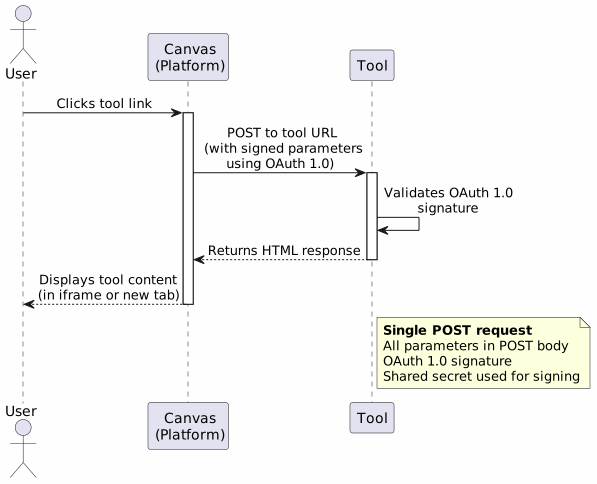
LTI 1.1 Launch Flow
The fundamental difference between LTI 1.1 and 1.3 is how launches are authenticated. LTI 1.1 uses a straightforward single-request approach: when a user clicks a tool link, Canvas immediately POSTs to the tool's URL with all parameters in the request body, signed using OAuth 1.0. The tool validates this signature and responds with its content.
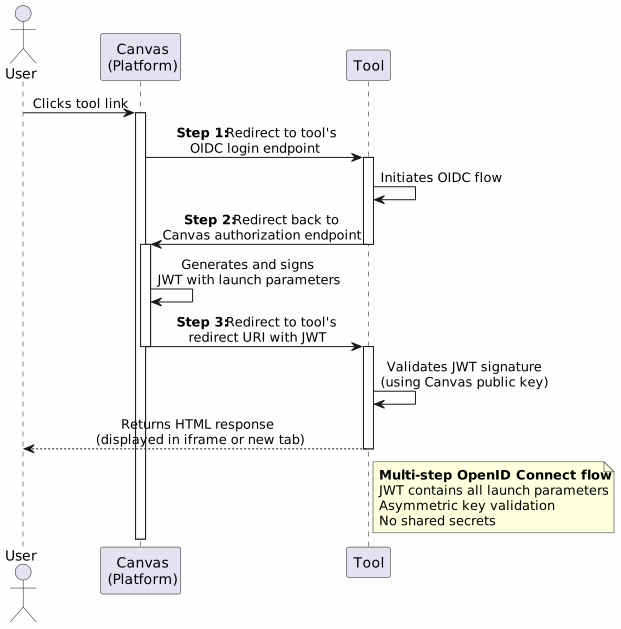
LTI 1.3 Launch Flow
LTI 1.3 takes a more sophisticated approach based on OpenID Connect. Instead of a single POST, the launch involves three steps with multiple redirects: first to the tool's login endpoint, then back to Canvas for authorization, and finally to the tool with a signed JWT containing all launch parameters. This multi-step process enables asymmetric key cryptography (where only the tool holds its private key).
For detailed implementation, see:
Asymmetric Keys vs. Shared Secrets
The most significant security improvement in LTI 1.3 is the elimination of shared secrets. In LTI 1.1, both the platform and tool must possess the same secret value, which creates security risks during transmission and storage. LTI 1.3 uses asymmetric cryptography, where each party keeps their private key secure and only exchanges public keys.
LTI 1.1: Shared Secret Flow
In LTI 1.1, the shared secret must be transmitted from the tool to Canvas (typically via email or secure portal), creating an opportunity for interception. Both parties then store this same secret and use it to sign and verify all communications.
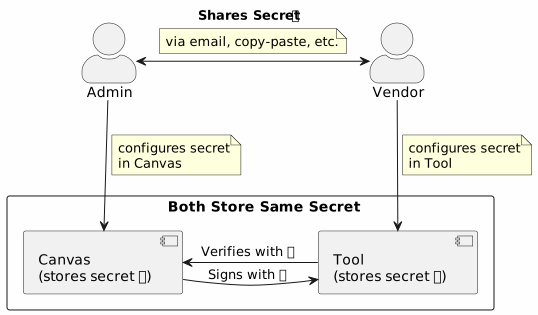
Security Concerns: The Secret must be transmitted over potentially insecure channels (email, copy-paste). The secret is also difficult to rotate, since changing it requires coordination and re-configuration on both sides.
LTI 1.3: Asymmetric Key Flow
In LTI 1.3, the platform and tool generate a public/private key pair and never share the private key with the other partner. Only the public keys are ever shared between platforms. Neither party ever possesses the other's private key.
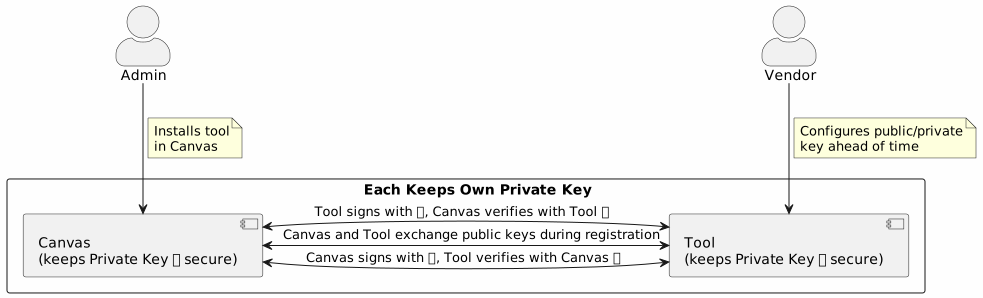
Security Benefits: No secrets are transmitted, only public keys are shared. Each party can rotate their keys independently, without coordinating with the other.
Key Endpoints:
- Canvas JWKS endpoint:
https://canvas.instructure.com/api/lti/security/jwks - Tool provides its JWKS endpoint during registration
REST JSON Services vs. XML Services
LTI 1.1 introduced XML-based services which provided basic functionality for returning student results from an assessment.
LTI 1.1: XML-based Services
<!-- Grade Passback Request (Basic Outcomes) -->
<?xml version="1.0" encoding="UTF-8"?>
<imsx_POXEnvelopeRequest>
  <imsx_POXHeader>
    <imsx_POXRequestHeaderInfo>
      <imsx_version>V1.0</imsx_version>
      <imsx_messageIdentifier>999999123</imsx_messageIdentifier>
    </imsx_POXRequestHeaderInfo>
  </imsx_POXHeader>
  <imsx_POXBody>
    <replaceResultRequest>
      <resultRecord>
        <sourcedGUID>
          <sourcedId>3124567</sourcedId>
        </sourcedGUID>
        <result>
          <resultScore>
            <language>en</language>
            <textString>0.92</textString>
          </resultScore>
        </result>
      </resultRecord>
    </replaceResultRequest>
  </imsx_POXBody>
</imsx_POXEnvelopeRequest>
LTI 1.3: REST JSON Services
LTI 1.3 switch to using services based on REST & JSON (easier to work with in modern languages).
// AGS Score Submission (Assignment and Grading Services)
POST /api/lti/courses/:course_id/line_items/:line_item_id/scores
{
  "timestamp": "2024-03-15T10:15:30.000Z",
  "scoreGiven": 92,
  "scoreMaximum": 100,
  "comment": "Great work!",
  "activityProgress": "Completed",
  "gradingProgress": "FullyGraded",
  "userId": "86157096483e6b3a50bfedc6bac902c0b20a824f"
}
The Migration Process
Canvas provides automated migration capabilities that significantly simplify the transition from LTI 1.1 to 1.3. Here's how it works:
Overview
When you install an LTI 1.3 tool on the same domain (or a more specific subdomain) as an existing LTI 1.1 tool, Canvas automatically:
- Identifies the relationship between the 1.1 and 1.3 tools (based on the domain).
- Migrates existing content (assignments, module items, collaborations) to use the 1.3 tool
- Preserves the 1.1 installation until you manually remove it
- Includes migration data in launch JWTs so tools can map users and resources
Step-by-Step Migration Process
Step 1: Install the LTI 1.3 App
Have a Canvas administrator install the 1.3 version of your app. This new app should be configured with a domain that is the same as the 1.1 tool. The domain matching is what triggers automatic migration. For example:
- 1.1 tool domain:
example.com - 1.3 tool domain:
example.com✅ (matches) - 1.3 tool domain:
app.example.com✅ (more specific subdomain matches) - 1.3 tool domain:
different.com❌ (no match, no automatic migration)
When the 1.3 tool is installed, Canvas will immediately use it to launch assignments and modules (if the domains match). The domain is determined by the domain field (not the domain of the redirect uris).
Step 2: Content Migration (Automatic)
Canvas automatically migrates content in batches using background jobs after the 1.3 tool is installed:
Content types migrated:
- Assignments with "External Tool" submission type
- Module items (ContentTags) pointing to the tool
- Collaborations using the tool
The migration process creates Lti::ResourceLink records for each content item, as well as Lti::LineItem records for assignments if the tool has the AGS scope enabled. The LTI 1.1 resource link ID is stored with each migrated item for backward compatibility.
Timeline:
- Immediate: New launches use the 1.3 tool
- Background (minutes to hours): Existing content is migrated in batches
- Just in Time: Launches to content that aren't yet migrated are migrated just-in-time.
Once migrated, Canvas includes an lti1p1 claim in the content item launch JWT to help tools map data:
{
  "https://purl.imsglobal.org/spec/lti/claim/lti1p1": {
    "user_id": "86157096483e6b3a50bfedc6bac902c0b20a824f",
    "resource_link_id": "4dde05e8ca1973bcca9bffc13e1548820eee93a3",
    "oauth_consumer_key": "canvas_key_12345",
    "oauth_consumer_key_sign": "a1b2c3d4e5f6..."
  },
  // ... other standard 1.3 claims
}
Tools can use this claim to map 1.3 user IDs (the sub claim) to existing 1.1 user records, associate 1.3 resource links with existing content. The 1.1 consumer key is also provided so that tools can map the integration to the new 1.3 installation.
Step 3: Monitor Migration Progress
While the migration is running, administrators can monitor progress in the Canvas UI. Navigate to the Apps configuration page (Course/Account Settings → Apps), and you'll see an hourglass icon next to the 1.3 tool name while migration is active. Clicking this icon opens a modal showing real-time progress with the number of item batches that have been migrated.
The hourglass icon disappears once migration completes. To verify migration completed successfully after the fact, check that the lti1p1 claim appears in launch JWTs when launching migrated content, or confirm that existing assignments and module items launch correctly using the 1.3 tool.
Step 4: Validate the new tool is working
Make sure the tool can launch with 1.3 JWTs successfully, grade passback (if applicable) works, and roster data syncs (if using NRPS) work.
Step 4: Remove LTI 1.1 Installations (Manual)
LTI 1.1 installations remain active until manually removed, as Canvas doesn't automatically delete 1.1 tools. Placement launches from these installations still use 1.1 until the 1.1 tool is removed.
To remove 1.1 installations, a Canvas administrator will need to find them in the account's or course's settings page and manually remove them. After the 1.1 tool is removed, no more launches will use 1.1 signatures, and the migration is complete.
Domain Matching Details
Canvas uses sophisticated matching logic to associate 1.1 and 1.3 tools:
Matching priority:
- Exact URL match - Highest priority
- URL match ignoring query parameters
- Domain match (base domain comparison)
- Most specific subdomain -
app.example.comis preferred overexample.com
Examples:
1.1 tool: https://example.com/lti/launch
1.3 tool: https://example.com/lti/launch
→ ✅ Exact match (will migrate)

1.1 tool: https://example.com/lti/launch?version=1.1
1.3 tool: https://example.com/lti/launch
→ ✅ Query-flexible match (will migrate)

1.1 tool domain: example.com
1.3 tool domain: app.example.com
→ ✅ Subdomain match (will migrate)

1.1 tool domain: example.com
1.3 tool domain: different-example.com
→ ❌ No match (won't migrate)
Frequently Asked Questions
General Migration Questions
Q: Will my existing assignments and content still work after migration?
A: Yes! Canvas automatically migrates assignments, module items, and collaborations to use the 1.3 tool. Students and instructors will continue to access content seamlessly. The lti1p1 claim in launches helps your tool map data from the 1.1 version.
Q: Do I need to keep both 1.1 and 1.3 tools installed?
A: Temporarily, yes - but only until you verify the migration is complete. Once you've confirmed: that all launches work correctly, the grade passback functions properly (if applicable) and all placements are working, then you can safely remove the 1.1 installations. Note that course-level 1.1 installations remain active until explicitly removed.
Q: What if my 1.3 tool is on a different domain than my 1.1 tool?
A: Automatic migration relies on domain matching. If your domains are different: The automatic migration will not work, and you'll need to manually migrate data using your own logic. Consider using a subdomain of your existing domain for easier migration.
Q: How long does the migration process take?
A: It varies by content volume. New launches will start using 1.3 immediately after the 1.3 tool is installed. Background migration of existing content takes minutes to hours depending on the number of assignments and modules.
You can monitor progress by clicking the hourglass icon next to the tool in the Apps configuration page. Once the icon disappears, migration is complete. You can also verify by checking if the lti1p1 claim appears in your launch JWTs when launching migrated content.
Technical Questions
Q: What's in the lti1p1 claim and why is it important?
A: The lti1p1 claim contains LTI 1.1 identifiers for backward compatibility:
{
  "user_id": "LTI 1.1 opaque user identifier",
  "resource_link_id": "LTI 1.1 resource link ID",
  "oauth_consumer_key": "Your 1.1 consumer key",
  "oauth_consumer_key_sign": "Signature for verification"
}
Tools use this to map 1.1 ids to new 1.3 ids. See https://www.imsglobal.org/spec/lti/v1p3/migr#lti-1-1-migration-claim for more information.
Q: How do I handle grade passback after migration?
A: You have two approaches:
- Continue using Basic Outcomes temporarily: LTI 1.3 tools can still use the 1.1 Basic Outcomes service during transition
- Switch to AGS (recommended): Implement the Line Items and Scores services for full 1.3 support
AGS provides significant advantages (batch grading, multiple line items, clearing scores), and is much easier to use, so we recommend switching as part of migration.
Troubleshooting Questions
Q: My launches are still using 1.1 after installing the 1.3 tool. Why?
A: Check these common issues:
- Domain mismatch: Verify the 1.3 tool domain matches (or is a subdomain of) the 1.1 domain
- Course-level installation: If the 1.1 tool is installed at course level, placements in that course will still use 1.1
- Different context: The 1.3 tool must be installed in the same context (or higher) as the 1.1 tool
- Migration not complete: Background jobs may still be processing
Q: The lti1p1 claim is missing from launches. Is that a problem?
A: It depends:
- For new content created after 1.3 installation: This is normal - there's no 1.1 data to include
- For migrated content: This might indicate a migration issue. Verify:
- Domains match correctly
- Migration completed (check if the hourglass icon next to the tool in Apps has disappeared)
- Content was originally associated with the 1.1 tool
Q: Can I test the migration without affecting users?
A: Yes, we recommend:
- Test in a sandbox/test Canvas instance first
- Create a test course with the 1.1 tool installed
- Install 1.3 tool at course level initially (not account level)
- Verify migration works correctly in test environment
- Roll out to production after validation
Q: How do I handle multiple 1.1 installations with different configurations?
A: This is complex because automatic migration maps by domain:
- One 1.3 tool will replace all 1.1 tools with matching domains
- Use the
oauth_consumer_keyin thelti1p1claim to identify which installation - Consider whether different installations should be separate 1.3 tools or configurations
Q: Can I rollback the migration? What happens if I delete the 1.3 tool?
A: Yes, you can rollback by deleting the 1.3 tool, but the behavior depends on whether you kept your 1.1 installation.
If the 1.1 tool is still installed: Deleting the 1.3 tool will cause launches to automatically fallback to the 1.1 tool. Migrated content like assignments and modules will continue to work using 1.1 launches. The Lti::ResourceLink and Lti::LineItem records created during migration remain in the database but become inactive. This provides a clean rollback path if you encounter issues with the 1.3 tool.
If the 1.1 tool was already removed: Deleting the 1.3 tool will break launches entirely since there's no tool to handle them. You'll need to reinstall either the 1.1 or 1.3 tool to restore functionality. Migrated content will still exist but won't launch until a tool is reinstalled.
Best practices: We recommend keeping the 1.1 tool installed during the initial 1.3 rollout as a safety net. Test the 1.3 tool thoroughly before removing the 1.1 version, and communicate with users before removing either tool version. Consider a phased rollout approach, removing 1.1 installations course-by-course rather than all at once, to minimize risk and allow for easier troubleshooting.
Additional Resources
Official Specifications
- IMS LTI 1.3 Core Specification
- IMS LTI Advantage Implementation Guide
- IMS Security Framework (OpenID Connect)
- Assignment and Grading Services
- Names and Roles Provisioning Service
- LTI Deep Linking
- LTI Dynamic Registration
Canvas Documentation
- LTI Launch Overview - Launch flow details
- Assignment Tools - AGS implementation
- External Tools API - Canvas API documentation
- LTI Dev Key Configuration - 1.3 configuration format
Canvas Community
Implementation Details (for Canvas Developers)
app/models/context_external_tool.rb:1300-1397- Content migration logicapp/services/lti/tool_finder.rb- Domain matching implementationlib/lti/messages/jwt_message.rb:199-212-lti1p1claim generationapp/models/lti/migratable.rb- Migration interface for content typesgems/lti-advantage/lib/lti_advantage/claims/lti1p1.rb- Migration claim structure
Feedback and Questions
Have questions not covered in this guide? Please reach out:
- Canvas Community: https://community.canvaslms.com
- Canvas Support: For enterprise customers
Last updated: 2026-08-21