We have relocated to Instructure Developer Documentation Portal. 🎉 Please update your bookmarks. This page will automatically redirect after July 1, 2026.
Document Processor
Asset Processor (called Document Processor in Canvas) is a collection of LTI Advantage extensions, which provide a standardized way for tools to process documents (files) and send back reports to Canvas. The LTI 1.3 Asset Processor is the new standard for conducting plagiarism checks with external tools. For all new integrations, we recommend using the Asset Processor instead of the deprecated LTI 2.0 CPF (Canvas Plagiarism Framework).
The main use-case for Document Processors is the plagiarism check of student submissions (text or file upload).
See also Asset Processor API for endpoint-level documentation.
Prerequisites
The tool should support Platform Notification Service to receive notifications about student submissions.
Tool Registration
The developer key for the tool should have the required scopes and placement (ActivityAssetProcessor) set up to act as an Asset Processor.
In case of manual registration, the configuration JSON for the placement looks like this:
{
  "title": "LTI 1.3 Local",
  "description": "LTI 1.3 Local Extension text",
  "target_link_uri": "http://lti-13-test-tool.inseng.test/launch",
  "scopes": [
    ...
    "https://purl.imsglobal.org/spec/lti/scope/noticehandlers",
    "https://purl.imsglobal.org/spec/lti/scope/asset.readonly",
    "https://purl.imsglobal.org/spec/lti/scope/report"
    ...
  ],
  "extensions": [
    {
      "domain": "host",
      "tool_id": "LTI 1.3 tool",
      "platform": "canvas.instructure.com",
      "settings": {
        "placements": [
              ...
          {
            "text": "LTI 1.3 Text",
            "icon_url": "",
            "placement": "ActivityAssetProcessor",
            "message_type": "LtiDeepLinkingRequest",
            "target_link_uri": "https://host/launch?placement=ActivityAssetProcessor"
          }
            ...
        ]
      }
    }
  ]
}
New scopes:
| Can register to be notified when Document Processor Assignment is submitted to. (This is part of the Platform Notification Service spec.) | https://purl.imsglobal.org/spec/lti/scope/noticehandlers |
| Can retrieve submissions from Document Processor Assignments. | https://purl.imsglobal.org/spec/lti/scope/asset.readonly |
| Can send reports for Document Processor Assignments. | https://purl.imsglobal.org/spec/lti/scope/report |
In the case of dynamic registration, the tool should add the new scopes to the scope field and add the ActivityAssetProcessor placement to a LtiDeepLinkingRequest entry in the messages array inside its tool configuration.
{
  ...
  "scope": "... https://purl.imsglobal.org/spec/lti/scope/noticehandlers https://purl.imsglobal.org/spec/lti/scope/asset.readonly https://purl.imsglobal.org/spec/lti/scope/report",
  ...
  "https://purl.imsglobal.org/spec/lti-tool-configuration": {
    ...
    "messages": [
      ...
      {
        "type": "LtiDeepLinkingRequest",
        "label": "Label",
        "icon_uri": "",
        "placements": [
          "ActivityAssetProcessor"
        ]
        ...
      }
    ],
    ...
  }
}
Attach Asset Processor to an Assignment
A teacher can attach an Asset Processor to an Assignment if the assignment submission type is text entry and/or file upload by clicking the new "Add Document Processing App" button on the Assignment create or edit page.

This will initiate a deep linking request to the tool with a launch payload like this:
{
  "https://purl.imsglobal.org/spec/lti/claim/message_type": "LtiDeepLinkingRequest",
  "https://purl.imsglobal.org/spec/lti/claim/version": "1.3.0",
  "https://purl.imsglobal.org/spec/lti-dl/claim/deep_linking_settings": {
    "deep_link_return_url": "http://host/deep_linking_response/course_id/123",
    "accept_types": ["ltiAssetProcessor"],
    "accept_presentation_document_targets": ["iframe", "window"],
    "accept_multiple": true,
    "auto_create": true
  },
  ...
  "https://purl.imsglobal.org/spec/lti/claim/activity": {
    "id": "cefbe1dc-bd58-496b-bf62-75dea59301b8"
  },
  ...
  "https://purl.imsglobal.org/spec/lti/claim/context": {
    "id": "4179eb6119e53e5bd761fa5e2eb4898433dddbf9",
    "label": "Second",
    "title": "Second Course",
    "type": [
      "http://purl.imsglobal.org/vocab/lis/v2/course#CourseOffering"
    ]
  },
  "https://purl.imsglobal.org/spec/lti/claim/platformnotificationservice": {
    "service_versions": [
      "1.0"
    ],
    "platform_notification_service_url": "http://host/api/lti/notice-handlers/132",
    "scope": [
      "https://purl.imsglobal.org/spec/lti/scope/noticehandlers"
    ],
    "notice_types_supported": [
      "LtiAssetProcessorSubmissionNotice"
    ]
  },
  ...
  "https://www.instructure.com/placement": "ActivityAssetProcessor"
}
| Claim URL | Description |
|---|---|
| https://purl.imsglobal.org/spec/lti-dl/claim/deep_linking_settings | The accept_types array containing ltiAssetProcessor is the signal that the tool should return an ltiAssetProcessor content item in its deep linking response. Per the spec, if ltiAssetProcessor is not present in accept_types, the tool MUST NOT return any ltiAssetProcessor content items. |
| https://purl.imsglobal.org/spec/lti/claim/activity | UUID of the current assignment. Note that if the Asset Processor is added on a draft assignment, the assignment may not exist yet, but if saved it will have this UUID. |
| https://purl.imsglobal.org/spec/lti/claim/platformnotificationservice | Provides information about the new PNS notice type (LtiAssetProcessorSubmissionNotice), which the tool must subscribe to before sending back the deep linking response. |
The tool's deep linking response contains the content items that define the asset processor's general properties.
{
  "https://purl.imsglobal.org/spec/lti/claim/message_type": "LtiDeepLinkingResponse",
  "https://purl.imsglobal.org/spec/lti/claim/version": "1.3.0",
  ...
  "https://purl.imsglobal.org/spec/lti-dl/claim/content_items": [
    {
      "type": "ltiAssetProcessor",
      "icon": {
        "url": "",
        "width": 64,
        "height": 64
      },
      "custom": {
        ..
      },
      "report": {
        "url": "https://mytool/launch?report=true",
        "custom": {
            ...
        }
      },
      "text": "Lti 1.3 Tool Text",
      "title": "Lti 1.3 Tool Title"
    }
  ],
}
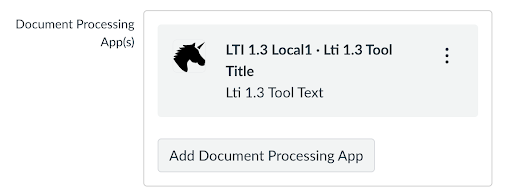
A tool can return multiple content items and identify them later by the specified custom parameters. A successfully attached asset processor looks like this on the assignment create/edit page:
Change Settings of an Attached Asset Processor
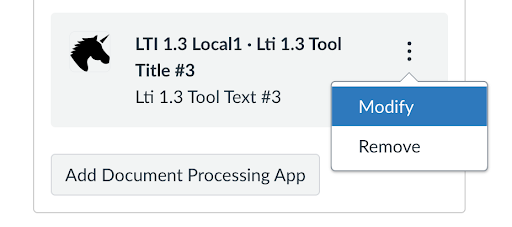
To change the settings of an attached asset processor, a teacher can click the "Modify" button in the context menu, which initiates an LtiAssetProcessorSettingsRequest. This option is only available when the asset processor is already attached and the assignment was saved.
Example LtiAssetProcessorSettingsRequest:
{
  "https://purl.imsglobal.org/spec/lti/claim/message_type": "LtiAssetProcessorSettingsRequest",
  "https://purl.imsglobal.org/spec/lti/claim/version": "1.3.0",
  "https://purl.imsglobal.org/spec/lti/claim/activity": {
    "id": "bf7dc78e-02c2-45bf-86ec-c03a0ed0bc5e",
    "title": "Assignment3"
  },
  ...
  "https://purl.imsglobal.org/spec/lti/claim/custom": {
    ...
  },
  "https://www.instructure.com/placement": null
}
| Claims | Description |
|---|---|
| https://purl.imsglobal.org/spec/lti/claim/activity | UUID of the current assignment. |
| https://purl.imsglobal.org/spec/lti/claim/custom | Custom parameters specified in the tool deployment (developer key) are merged with the custom parameters defined in the asset processor content item within the deep linking response. |
Submission
When a student submits a file or text assignment to which at least one asset processor is attached, Canvas sends an LtiAssetProcessorSubmissionNotice to the tool's registered notice handler (via PNS). Every attached asset processor will get a separate notice. One notice will contain multiple assets if the submission contains multiple files.
{
  "https://purl.imsglobal.org/spec/lti/claim/version": "1.3.0",
  "https://purl.imsglobal.org/spec/lti/claim/notice": {
    "id": "26ac6f2a-4925-41e1-9768-176127e19ad8",
    "timestamp": "2025-08-01T12:45:56Z",
    "type": "LtiAssetProcessorSubmissionNotice"
  },
  ...
  "https://purl.imsglobal.org/spec/lti/claim/custom": {
  ...
  },
  "https://purl.imsglobal.org/spec/lti/claim/for_user": {
    "user_id": "972fd8aa-7f57-4d11-9400-916a0ed0d31d"
  },
  "https://purl.imsglobal.org/spec/lti/claim/assetreport": {
    "scope": [
      "https://purl.imsglobal.org/spec/lti/scope/report"
    ],
    "report_url": "http://host/api/lti/asset_processors/83/reports"
  },
  "https://purl.imsglobal.org/spec/lti/claim/assetservice": {
    "scope": [
      "https://purl.imsglobal.org/spec/lti/scope/asset.readonly"
    ],
    "assets": [
      {
        "asset_id": "dd33081e-81ba-4651-b528-098315f8a346",
        "url": "http://host/api/lti/asset_processors/83/assets/dd33081e-81ba-4651-b528-098315f8a346",
        "sha256_checksum": "cy5X2xVgjbMETnEFhDQvRMWfodOxsI51YpYNCtxjZig=",
        "timestamp": "2025-07-30T03:26:44-06:00",
        "size": 29,
        "content_type": "text/html",
        "title": "AnonymousGraded"
      }
    ]
  },
  "https://purl.imsglobal.org/spec/lti/claim/activity": {
    "id": "d79c2ded-b078-4e8e-b090-dd1d380fc596"
  },
  "https://purl.imsglobal.org/spec/lti/claim/submission": {
    "id": "d6446aaf-3f71-4eea-b2fd-20bd8d151506:1"
  }
}
| Claim | Description |
|---|---|
| https://purl.imsglobal.org/spec/lti/claim/custom | This claim contains custom parameters specified in the tool deployment (developer key) merged with the custom parameters defined in the asset processor content item in the deep linking response. |
| https://purl.imsglobal.org/spec/lti/claim/for_user | The user who uploaded the submission. |
| https://purl.imsglobal.org/spec/lti/claim/assetreport | Specifies the URL that the tool can use to upload the reports. (See Asset Report Service) |
| https://purl.imsglobal.org/spec/lti/claim/assetservice | Specifies the assets uploaded to the current submission. The assets can be downloaded by the tool using the Asset Service at the URL given by the asset's "url" property. Filename is only provided if the asset is a file. In case of text entry submission, the filename property is not defined. |
| https://purl.imsglobal.org/spec/lti/claim/activity | Id of the assignment |
| https://purl.imsglobal.org/spec/lti/claim/submission | The ID of the current submission. The combination of submission ID and assets is immutable. If a user resubmits or updates their submission, a new submission ID is generated. |
Resubmit a notice
When the asset processor uploads no reports or at least one report where:
- the processing progress is PendingManual
- or Failed with error code
EULA_NOT_ACCEPTEDorDOWNLOAD_FAILED
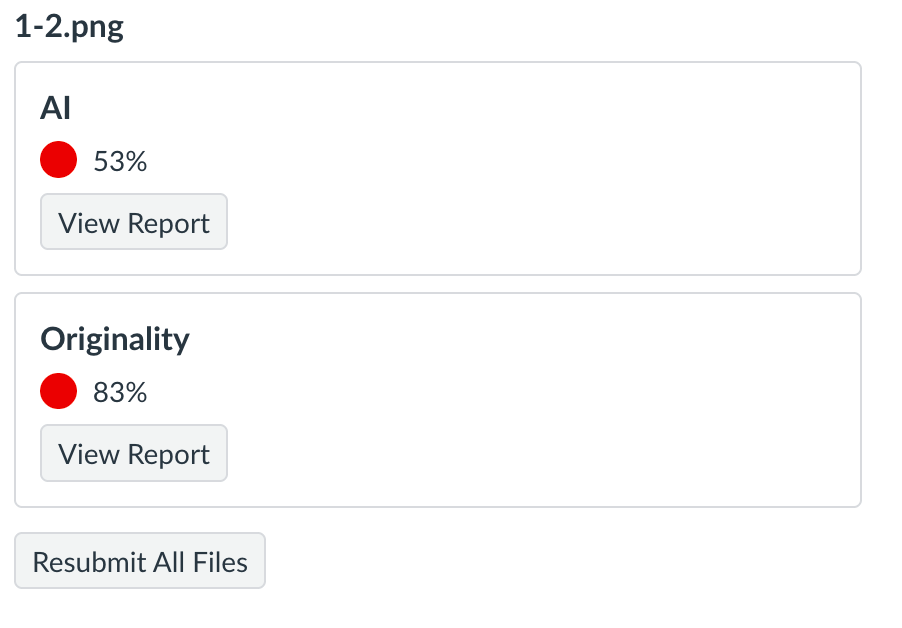
The teacher can resubmit the notice using the “Resubmit All Files” button in SpeedGrader. The notice will contain all assets, not just those belonging to the failed reports.
Downloading an Asset
Tools can download the assets of a submission using the Asset Service. This is a server-to-server call. To use asset service, the tool must have https://purl.imsglobal.org/spec/lti/scope/asset.readonly scope. The service endpoint is using the standard LTI Advantage authentication. The URL of the asset is provided in LtiAssetProcessorSubmissionNotice/https://purl.imsglobal.org/spec/lti/claim/assetservice/assets[*]/url.
Example request:
GET http://host/api/lti/asset_processors/83/assets/dd33081e-81ba-4651-b528-098315f8a346
Authorization: Bearer eyJ0eXAiOiJKV1QiLCJhbGciOiJIUzI1NiJ9.eyJpc3MiOiJodHRwczovL2NhbnZhcy5pbnN0cnVjdHVyZS5jb20iLCJzdWIiOiIxMDAwMDAwMDAwMDA2OCIsImF1ZCI6WyJodHRwOi8vY2FudmFzLXdlYi5pbnNlbmcudGVzdC9sb2dpbi9vYXV0aDIvdG9rZW4iLCJjYW52YXMtd2ViLmluc2VuZy50ZXN0Il0sImlhdCI6MTc1NDM4NTM4MSwiZXhwIjoxNzU0Mzg4OTgxLCJqdGkiOiIxYWY1MmFkYS00NzIwLTRlMDAtYjVjMi0wMTY4M2YzZWM5NTQiLCJzY29wZXMiOiJodHRwczovL3B1cmwuaW1zZ2xvYmFsLm9yZy9zcGVjL2x0aS9zY29wZS9hc3NldC5yZWFkb25seSIsImNhbnZhcy5pbnN0cnVjdHVyZS5jb20iOnsiYWNjb3VudF91dWlkIjoialRlemh1S1E1VUJKME9nN2ZON2I4ZER6NERUdWpVeGVXTnhxT25OUiJ9fQ.tm4BJhja-7hwgD0U82nfXvKCwgyFFaIT3YYRO2b_M0I
Response: Canvas may return a redirect. Make sure your client follows redirects when downloading the asset. Text entry assets are returned with text/html content-type.
Uploading an Asset Report
The tool can upload reports to specific assets using the Asset Report Service. To use the service, the tool should have the https://purl.imsglobal.org/spec/lti/scope/report scope.
The service endpoint can be found in the https://purl.imsglobal.org/spec/lti/claim/assetreport/report_url claims of the LtiAssetProcessorSubmissionNotice.
Example:
POST https://host/api/lti/asset_processors/83/reports
Content-Type: application/json
Authorization: Bearer eyJ0eXAiOiJKV1QiLCJhbGciOiJIUzI1NiJ9.eyJpc3MiOiJodHRwczovL2NhbnZhcy5pbnN0cnVjdHVyZS5jb20iLCJzdWIiOiIxMDAwMDAwMDAwMDA2OCIsImF1ZCI6WyJodHRwOi8vY2FudmFzLXdlYi5pbnNlbmcudGVzdC9sb2dpbi9vYXV0aDIvdG9rZW4iLCJjYW52YXMtd2ViLmluc2VuZy50ZXN0Il0sImlhdCI6MTc1NDM4ODY1MiwiZXhwIjoxNzU0MzkyMjUyLCJqdGkiOiIzMGE0ZDAyOC1hOTI4LTQ3NTEtYTM2ZS1hNmIzM2ZkZjg2ZjgiLCJzY29wZXMiOiJodHRwczovL3B1cmwuaW1zZ2xvYmFsLm9yZy9zcGVjL2x0aS9zY29wZS9yZXBvcnQiLCJjYW52YXMuaW5zdHJ1Y3R1cmUuY29tIjp7ImFjY291bnRfdXVpZCI6ImpUZXpodUtRNVVCSjBPZzdmTjdiOGREejREVHVqVXhlV054cU9uTlIifX0.3WSj0z6mYXzlgtVmr6FsLWr8pAIvMQLMmMjiLPz2plI

{
  "assetId": "dd33081e-81ba-4651-b528-098315f8a346",
  "type": "originality",
  "timestamp": "2025-08-05T08:52:25.348Z",
  "title": "Originality",
  "result": "83%",
  "indicationColor": "#EC0000",
  "indicationAlt": "High percentage of matched text.",
  "priority": 5,
  "processingProgress": "Processing",
  "visibleToOwner": true
}
Response: A successful response has http status 201 Created and the request body sent back as response body:
{
  "assetId": "dd33081e-81ba-4651-b528-098315f8a346",
  "type": "originality",
  "timestamp": "2025-08-05T08:52:25.348Z",
  "title": "Originality",
  "result": "83%",
  "indicationColor": "#EC0000",
  "indicationAlt": "High percentage of matched text.",
  "priority": 5,
  "processingProgress": "Processing",
  "visibleToOwner": true
}
The endpoint uses the standard LTI Advantage authentication scheme. A given asset can have reports from multiple asset processors. An asset processor can upload multiple reports to the same asset. Canvas will show the latest report for a given (asset processor, asset, report type) combination.
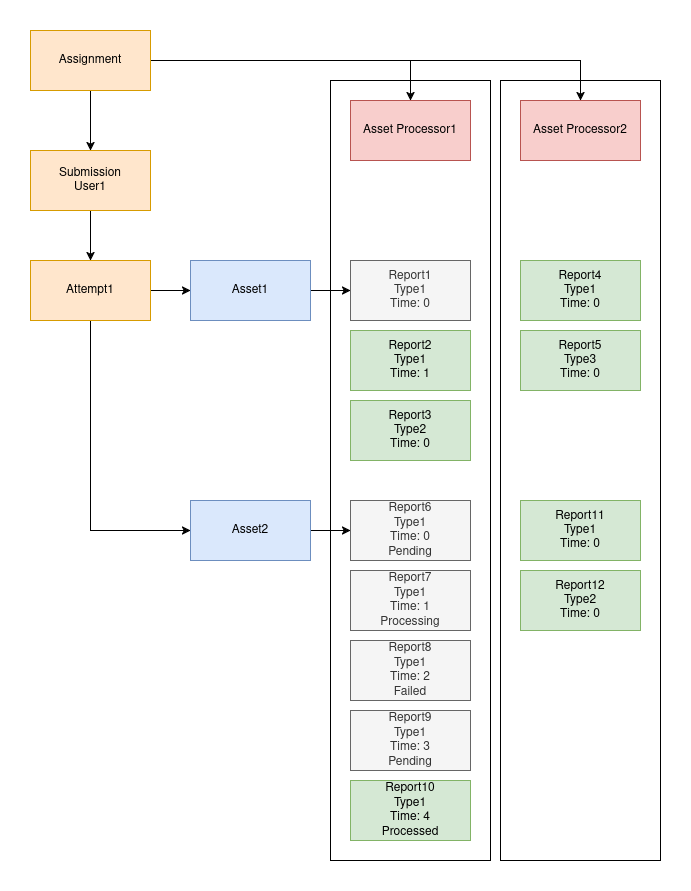
In this diagram, we have a user submission with multiple assets and reports. Only reports in green are visible on the UI.
- Report 1 has the same type as Report 2, but it’s older.
- Report 3 has a different type than Report 2.
- Report 4 has the same type as Report 2 but is generated by a different asset processor.
- Report 11 has the same type and asset processor as Report 4, but it belongs to a different asset.
- Reports 6-10 describe a typical case where initial processing fails, but the teacher resubmits the notice, which eventually succeeds.
Reports in Canvas
Teachers can check reports in SpeedGrader in the right panel:
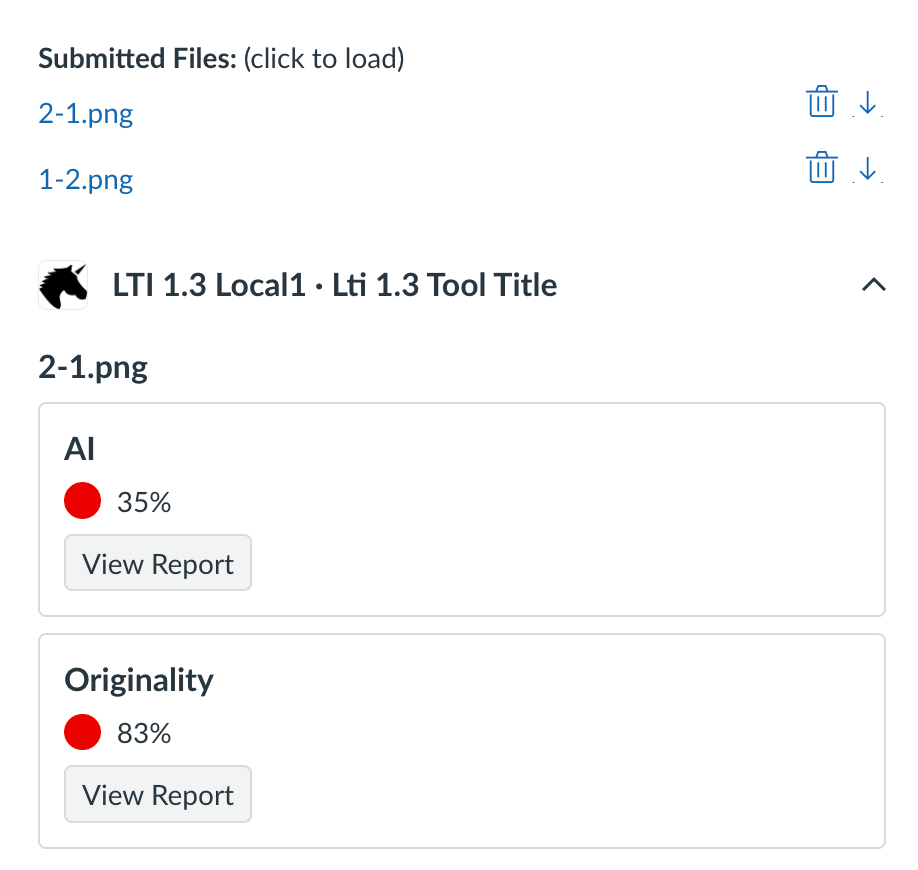
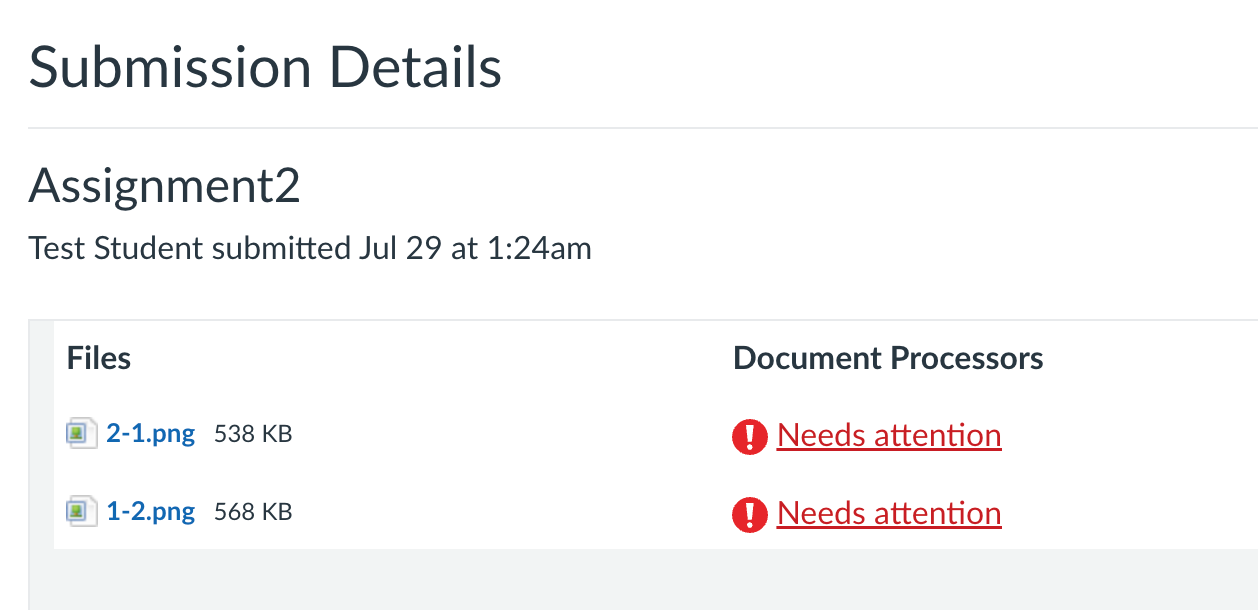
Students will only see reports where processingProgress is Processed and visibleToOwner flag is true in the uploaded report. Students can see the visible reports in the submission details view (e.g., /courses/284/assignments/243/submissions/605).
Or in the gradebook (for ex. /courses/284/grades):
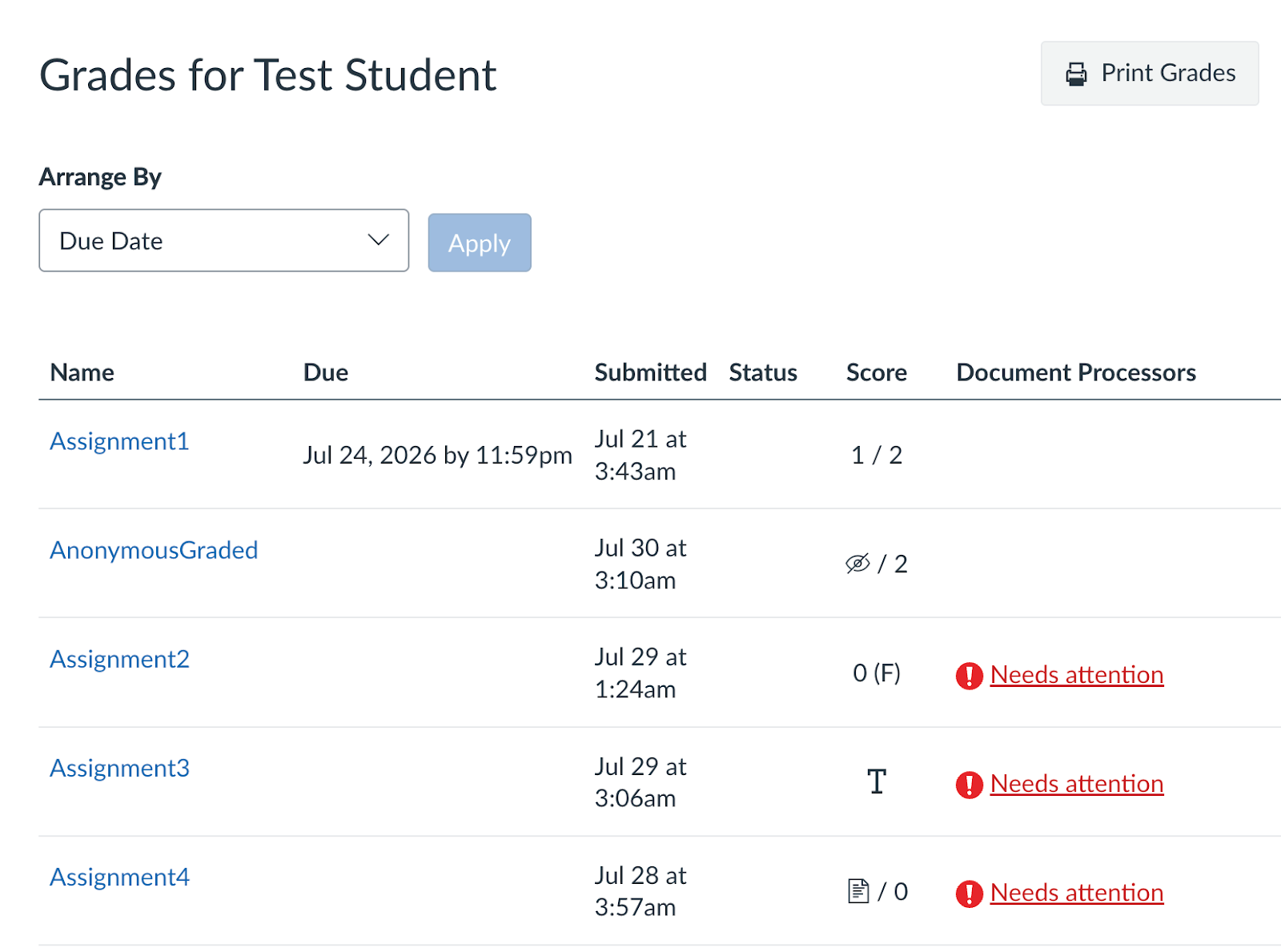
'Needs attention' here means that at least one report for the given assignment submission has a priority greater than 0.
View Report Details
LtiReportReviewRequest is a new LTI launch message type that is sent to the tool when the student or teacher clicks on the "View Report" button.
Payload example:
{
  "https://purl.imsglobal.org/spec/lti/claim/message_type": "LtiReportReviewRequest",
  "https://purl.imsglobal.org/spec/lti/claim/activity": {
    "id": "a099f7e1-e0eb-4f21-887a-c9a1df01fa6a",
    "title": "Assignment2"
  },
  "https://purl.imsglobal.org/spec/lti/claim/submission": {
    "id": "f1cb5434-422e-45ea-9915-6b98aacfabfc:5"
  },
  "https://purl.imsglobal.org/spec/lti/claim/assetreport_type": "ai",
  "https://purl.imsglobal.org/spec/lti/claim/for_user": {
    "user_id": "0f3fd458-9133-491b-8010-0ca3407481c3"
  },
  "https://purl.imsglobal.org/spec/lti/claim/asset": {
    "id": "a47f5a73-d23b-4cc0-8aea-1802f70d9645"
  },
  ...
  "https://purl.imsglobal.org/spec/lti/claim/custom": {
  ...
  },
  "https://www.instructure.com/placement": null
}
| Field | Description |
|---|---|
| https://purl.imsglobal.org/spec/lti/claim/activity | Id of the assignment |
| https://purl.imsglobal.org/spec/lti/claim/submission | Id of the submission |
| https://purl.imsglobal.org/spec/lti/claim/assetreport_type | Canvas does not use the value of an uploaded report's type field in its business logic. This field serves only to differentiate between reports; for a given report type, only the one with the latest timestamp is displayed. |
| https://purl.imsglobal.org/spec/lti/claim/for_user | The user who wants to see the report. |
| https://purl.imsglobal.org/spec/lti/claim/asset | Id of the asset to which the report belongs. |
| https://purl.imsglobal.org/spec/lti/claim/custom | Merged values of custom parameters defined in developer key, asset processor content item/custom, and asset processor content item/report/custom. |
EULA
The EULA service is technically independent of the Asset Processor, but tools may require students to accept their EULA before processing any asset. This can be done with the EULA service and the new LtiEulaRequest message.
To indicate EULA support,
- request
https://purl.imsglobal.org/spec/lti/scope/eula/userscope during manual or dynamic registration - in case of dynamic registration, indicate support of
LtiEulaRequestmessage:
{
  ...
  "scope": "... https://purl.imsglobal.org/spec/lti/scope/eula/user",
  "https://purl.imsglobal.org/spec/lti-tool-configuration": {
    ...
    "messages": [
      ...
      {
        "type": "LtiEulaRequest"
      },
    ],
  }
}
- In case of Manual Configuration in LTI Apps, check the "Enable EULA Request" checkbox (EULA scopes and a Document Processor placement must be enabled for this to show up)

- In case of JSON Configuration, enable
LtiEulaRequestin themessage_settingssetting as follows:
Configuration:
{
  "title": "your tool title",
  "scopes": [...]
  "extensions":[
    "platform": "canvas",
    "settings": {
      "text": "Tool Text",
      "placements": [...],
      "message_settings": [
        {
          "type": "LtiEulaRequest",
          "enabled": true,
          "target_link_url": "https://baseurl/eula_launch",
          "custom_fields": {...}
        }
      ]
    }
  ]
}
When a student opens an assignment that has an asset processor with EULA support, Canvas will launch the tool with an LtiEulaRequest if:
- the tool hasn't opted out from EULA by sending
eulaRequired: falsewith EULA deployment service - the user hasn’t already accepted the EULA of the tool
User EULA acceptance belongs to the tool deployment, so if the tool is deployed at the root account level, the EULA only needs to be accepted once. Any new courses/assignments and asset processor attachments will not trigger the EULA acceptance modal again.
EULA acceptance does not affect student submissions. Students can still submit their work, and a notice will be sent to the tool about the new assets. The tool may to wish to upload a report with a EULA_NOT_ACCEPTED error code in this case.
EULA User Acceptance Service
When the tool receives an LtiEulaRequest launch, it should show the EULA to the user and report the acceptance/rejection to the platform via the EULA user acceptance service.
LtiEulaRequest example:
{
  "https://purl.imsglobal.org/spec/lti/claim/message_type": "LtiEulaRequest",
  "sub": "0f3fd458-9133-491b-8010-0ca3407481c3",
  "https://purl.imsglobal.org/spec/lti/claim/version": "1.3.0",
  ...
  "https://purl.imsglobal.org/spec/lti/claim/custom": {
    ...
  },
  "https://purl.imsglobal.org/spec/lti/claim/eulaservice": {
    "url": "http://host/api/lti/asset_processor_eulas/132",
    "scope": [
      "https://purl.imsglobal.org/spec/lti/scope/eula/user",
      "https://purl.imsglobal.org/spec/lti/scope/eula/deployment"
    ]
  }
}
| LTI Claim | Description |
|---|---|
| https://purl.imsglobal.org/spec/lti/claim/custom | Merged values of custom parameters defined in the developer key and eula/custom_fields in the placement configuration. |
| https://purl.imsglobal.org/spec/lti/claim/eulaservice | The url field contains the base URL of the EULA services. |
Add /user to the base url to get the endpoint url of the EULA user acceptance service.
Example request:
POST https://host/api/lti/asset_processor_eulas/132/user
Content-Type: application/json
Authorization: Bearer eyJ0eXAiOiJKV1QiLCJhbGciOiJIUzI1NiJ9.eyJpc3MiOiJodHRwczovL2NhbnZhcy5pbnN0cnVjdHVyZS5jb20iLCJzdWIiOiIxMDAwMDAwMDAwMDA2OCIsImF1ZCI6WyJodHRwOi8vY2FudmFzLXdlYi5pbnNlbmcudGVzdC9sb2dpbi9vYXV0aDIvdG9rZW4iLCJjYW52YXMtd2ViLmluc2VuZy50ZXN0Il0sImlhdCI6MTc1NDQwMTQ3OCwiZXhwIjoxNzU0NDA1MDc4LCJqdGkiOiI0NjIwZGRlYi1kNzIyLTRkZDAtYWRlMi0zMDhhZDBjMDI3NzQiLCJzY29wZXMiOiJodHRwczovL3B1cmwuaW1zZ2xvYmFsLm9yZy9zcGVjL2x0aS9zY29wZS9ldWxhL3VzZXIiLCJjYW52YXMuaW5zdHJ1Y3R1cmUuY29tIjp7ImFjY291bnRfdXVpZCI6ImpUZXpodUtRNVVCSjBPZzdmTjdiOGREejREVHVqVXhlV054cU9uTlIifX0.i_5OO24T32FpuPdjXTv-n-mluskR64qmUd_lEG9l59I

{
  "userId": "0f3fd458-9133-491b-8010-0ca3407481c3",
  "accepted": true,
  "timestamp": "2025-08-05T13:44:38Z"
}
Get the userId from the sub claim of the LtiEulaRequest.
Response: A successful response has http status 201 Created and the request body sent back as response body:
{
  "userId": "0f3fd458-9133-491b-8010-0ca3407481c3",
  "accepted": true,
  "timestamp": "2025-08-05T13:44:38Z"
}
The tool must send a postMessage with {subject:'lti.close'} to close the dialog.
If the tool wants to reset all EULA acceptances (because for example the EULA changed and needs to be accepted again), it can send a delete request to the endpoint url:
DELETE https://host/api/lti/asset_processor_eulas/132/user
Content-Type: application/json
Authorization: Bearer eyJ0eXAiOiJKV1QiLCJhbGciOiJIUzI1NiJ9.eyJpc3MiOiJodHRwczovL2NhbnZhcy5pbnN0cnVjdHVyZS5jb20iLCJzdWIiOiIxMDAwMDAwMDAwMDA2OCIsImF1ZCI6WyJodHRwOi8vY2FudmFzLXdlYi5pbnNlbmcudGVzdC9sb2dpbi9vYXV0aDIvdG9rZW4iLCJjYW52YXMtd2ViLmluc2VuZy50ZXN0Il0sImlhdCI6MTc1NDQwMjQ0NiwiZXhwIjoxNzU0NDA2MDQ2LCJqdGkiOiIxOWM3MTgwNS05YTNlLTQyNTItOTgxNC1mN2Q5YzUwMmEyMmMiLCJzY29wZXMiOiJodHRwczovL3B1cmwuaW1zZ2xvYmFsLm9yZy9zcGVjL2x0aS9zY29wZS9ldWxhL3VzZXIiLCJjYW52YXMuaW5zdHJ1Y3R1cmUuY29tIjp7ImFjY291bnRfdXVpZCI6ImpUZXpodUtRNVVCSjBPZzdmTjdiOGREejREVHVqVXhlV054cU9uTlIifX0.oAcHz5bsZUBRNrW7wDUenD_zyXj4FGZ_8Y2T9LPvPyE
Response: A successful response has an HTTP status code 204 and an empty body.
EULA deployment service
The EULA deployment service can be used to enable or disable EULA requirements for the whole tool deployment. The default value of eulaRequired is true, so the tool only needs to call this endpoint if it wants to set it to false, thereby opting out of EULA acceptance. To use this service, the tool needs https://purl.imsglobal.org/spec/lti/scope/eula/deployment scope.
Add /deployment to the base URL to get the endpoint URL.
Example request:
PUT https://host/api/lti/asset_processor_eulas/132/deployment
Content-Type: application/json
Authorization: Bearer eyJ0eXAiOiJKV1QiLCJhbGciOiJIUzI1NiJ9.eyJpc3MiOiJodHRwczovL2NhbnZhcy5pbnN0cnVjdHVyZS5jb20iLCJzdWIiOiIxMDAwMDAwMDAwMDA2OCIsImF1ZCI6WyJodHRwOi8vY2FudmFzLXdlYi5pbnNlbmcudGVzdC9sb2dpbi9vYXV0aDIvdG9rZW4iLCJjYW52YXMtd2ViLmluc2VuZy50ZXN0Il0sImlhdCI6MTc1NDQwMDUwOSwiZXhwIjoxNzU0NDA0MTA5LCJqdGkiOiJmY2E2YmVkZC03YTBlLTQyMWYtYmNlMC04YzAyY2RiYzNiODkiLCJzY29wZXMiOiJodHRwczovL3B1cmwuaW1zZ2xvYmFsLm9yZy9zcGVjL2x0aS9zY29wZS9ldWxhL2RlcGxveW1lbnQiLCJjYW52YXMuaW5zdHJ1Y3R1cmUuY29tIjp7ImFjY291bnRfdXVpZCI6ImpUZXpodUtRNVVCSjBPZzdmTjdiOGREejREVHVqVXhlV054cU9uTlIifX0.wRX48zdA-Ixoj6xjDRXsQlBoR_0hzBB_9QnjebSViuk

{
 "eulaRequired": true
}
Response: A successful response has http status 200 OK and the request body sent back as response body:
{
 "eulaRequired": true
}
Glossary
| Asset | An asset is a document uploaded to a submission. It can be a text entry or a file. When students send a new submission attempt even with the same attachments, new assets are created. |
| Activity | Assignment |
| Asset Processor | An Asset Processor in this context is a capability of an LTI 1.3 tool that can be attached to an assignment to automatically process digital assets (documents, videos, files, etc.) submitted by students. The processor analyzes the submitted content and generates reports that are returned to the platform, enabling automated feedback, grading, or content analysis. |
| Report | A report is the output generated by an asset processor after analyzing submitted assets. Report metadata (score, comment etc) are sent back to Canvas via Asset Report Service, report details can be checked by the LtiReportReviewRequest. |
| Submission | In the context of the Asset Processor standard, a submission refers to an event where a student submits assets (documents, videos, files, etc.) to an assignment. This can be mapped to a submission attempt in Canvas. |